
I've been looking for a good source on 3d printer calibration, one better than the Orcaslicer page on the subject anyway, and I finally found a great video in straightforward English explaining a useful, working, proven process. Naturally, it was made by a German. Once again, if you'd rather have a video, go watch the video.
Valerian of Factorian Designs breaks his process down into five key calibrations to be carried out in order:
These being the most important steps and needing to carry them out in order is not a surprise. I strongly suggest you actually watch Valerian's video from beginning to end at least once so that you know what you're looking at and for while you're doing your tuning. As I've said before and as Valerian clearly states in his video, you will have to do all of this for yourself because no one else's printer is going to print exactly like yours. Using profiles from someone else with the same printer and using the same filament will get you into the ballpark, but nothing is going to get you the same print quality as doing a full calibration.
Also, hopefully as a reminder by this point (which the video does cover) you should also run all of your printer's calibrations before doing any tuning for filament. Every time I make a nozzle or bed change I re-run the relevant PID calibration (for the extruder or bed heater) and do an auto bed leveling at my expected nozzle and bed temperatures. Like my last article on calibration, this one is not going to cover anything that happens during or before that step.
Nozzle Temperature and Maximum Volumetric Speed
For some of these steps, you can simply refer to the Orcaslicer documentation. Note that any calibration you do in Orcaslicer can be translated to other slicers. This is covered in the video too, and an explanation of how this is actually done is given. You will learn only one thing from the video you can't get from there about calibrating nozzle temperature or maximum volumetric speed, which is how to get results without doing any math by simply looking at information inside of Orcaslicer. I find it faster to just use the online calculator, but this is still a very cool option which seems like it should be obvious, but I didn't think of it.
In general you are just going to perform these two tests like you always would have. There are some important takeaways in this part of the video (or nearby) which you might already be familiar with but bear repeating before you do so:
- Dry your filament unless you are sure it's dry. How can you be sure? If you just dried it.
- Higher temperatures provide higher layer adhesion but tend to create more stringing, but also permit higher volumetric speeds because you can melt more filament in a shorter time.
- Bridging is the least important quality factor to look at on the temperature tower, because we can address bridging problems with other adjustments (like cooling or bridge flow ratio.)
- You should add some safety margin to your maximum volumetric speed, perhaps 10%.
- You need to recalibrate for each temperature and nozzle size, and also for different types of extruder.
- Different colors of the same kind of filament might or might not behave the same. Different brands of the same basic type of filament will almost certainly be different.
Pick out the highest temperature on the tower with a well-defined or at least not misshapen cone and with a minimum of stringing, then run one or more maximum volumetric speed tests and reduce the max speed the test shows by a factor you feel is safe, then move on to the next and most complicated step.
Pressure Advance, and Klipper
Pressure advance (or "PA") is where the video started to become particularly useful to me. The pressure advance page on the website is informative and useful, but it also does a whole lot of unnecessary yakking for a person who really just wants to perform a proper pressure advance calibration in a timely fashion. What you really need to know for the purposes of understanding this section is that:
- If you have a Klipper-based printer, you can do a superior calibration.
- If not, you should do the tower calibration and move on.
- If so, do the tower calibration as a starting point, but you then can and should calibrate again for every combination of speed and acceleration you plan to print with. Aha, now this is where things get really complicated. Luckily, you don't need to print one of those cute little pentagonal PA towers for every combination, and you can also reduce the number of combinations you have to work with before taking this step.
You are likely and reasonably asking what I'm talking about here so right now, go take a look in Orcaslicer at the Speed tab of any process. You're probably going to see a huge collection of different speeds in use. The default HS-PETG profile for my printer, which is what I'm working from right now, uses 7 different speeds for layers, and four more different speeds for overhangs, plus still another different speed for travel. This is really unnecessary and only means you're going to have to do a lot more calibration if you don't reduce the number of speeds used.
If you're not already familiar, Orca (and other slicers) lets you see not just what lines will be drawn on each layer, and flip through the layers either with the up and down arrows or the slider on the right side of the window, but also to advance the drawing move by move using the left and arrows or the bottom slider. While you do this, there is a small information window shown at the bottom of the display which shows you the position, speed, and line type. Once you've set the maximum volumetric speed in your filament profile, looking at the speed of the fastest type of print move (probably an inner wall, but this depends on the process) will tell you what speed Orca has limited the print to because you'd otherwise exceed the maximum flow rate.
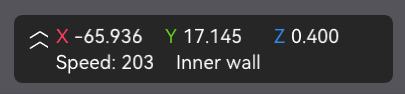
The inner wall speed in the profile I'm working with is 300mm/sec, but in fact I will never be able to print over 203mm/sec. I can therefore reduce all print moves to 200mm/sec or less, which reduces the number of layer-defined speeds by 3. I then reduced the first layer infill speed to match the first layer wall speed (which is good for reliability and quality anyway) and changed the support interface to match it as well, and made the support speed 100. Now I only have three speeds I need to calibrate for: 200, 100, and 50mm/sec.
I should probably mention here that part of adaptive pressure advance is that it will calculate pressure advance values for speeds and accelerations in between the values you test for. However, those calculated values might or might not be exactly correct. Still, you can do absolutely none of the minimization of speeds and still get superior results by using the pattern method and adaptive pressure advance.
First, use the old school tower method to get a starting baseline pressure advance, which is going to be defined by the outer wall speed. No surprises here, do it just like the Orca pressure advance page says. Note that if you just need to get a functional print of some simple object, you can probably stop here and just print if you chose a decent starting profile. Even some relatively complex prints will work fine by this point, but you might have problems with complex print in place parts depending on what your filament is like. Use a ruler or caliper to determine a height where all the corners look good, calculate it somehow (this is actually a time when it's pretty neat to get this info from the slicer preview in Orca as shown in the video) and go ahead and put that value in.
Now this would be a dandy time to calibrate Z offset, because you're going to use the other kind of pressure advance test, the pattern, and these tests are relatively thin. This test is designed to minimize the impact of bed leveling, but it won't eliminate it completely. These tests also have a lot of relatively thin lines, so they will benefit from good first layer quality in general. If you are in the neighborhood of correct, though, these tests will probably work OK.
As said on the video, it's recommended you test pressure advance at your lowest speed, your highest speed, and at least one value in between. As I only have 200, 100, and 50mm/sec to think about, I can use all three of my specified speeds. (Only first layer and support interface are printed at this speed, so there won't be any slowdown for these.) You are also to use at least the top layer and outer wall acceleration values. If it differs, you may also want to use the inner wall acceleration. This is going to produce six (or more) patterns which you're going to evaluate, then in the material/filament settings you'll enter six lines into the adaptive pressure measurements with the results and any other pressure advance values will be extrapolated from them. This is an important key to maximum print quality which unfortunately a lot of users can't benefit from because their printer doesn't run Klipper.
What you're looking for is the sharpest corners without gaps between the lines. Once you've identified them, record the pressure advance, flow rate, and acceleration in that order and enter them in like so:
0.045,16.9,2000
0.08,4.23,2000
0.06,8.41,2000
And so on.

Flow Rate
If pressure advance is the most under-understood calibration, then flow rate is probably the most outright misunderstood. But the video has some good advice here, and I've got some advice for you as well to get started with. You're going to use the YOLO method, and you are looking specifically for gaps between circles and picking the first value shown on the attached tags. If you are not using a filament which makes it very easy to read the numbers, or if your Z offset is not set properly yet, you are going to have a hard time lining these up for evaluation. Therefore, my advice for you is to not detach them from the build plate until after you've evaluated them. This is one of the many times when the flexible steel build plates on all the modern printers really help out, since you can carry the whole bed to a location where you can check it out easily, but a lighted magnifier is cheap and will make this process easy even if you have a glass bed or similar.
As Valerian says: Increase or decrease the flow rate by the amount on the tag, and if all samples have gaps, increase it by .05 and then run it again. Conversely, if no samples have any gaps between the circles, you should decrease it by .05 and run the test again, because you want the absolute lowest flow rate which eliminates all gaps in order to produce the best surface quality.
Retraction Distance
Retraction distance is arguably the simplest and most straightforward calibration of all. Most of us can use the default values, as our printers have direct drive extruders. If you have a Bowden extruder (the feeder is in the wrong place, i.e. not on the extruder head) then this value is probably higher and you will need to increase both the step and range. Count the rings from the bottom, multiply by the step value, and set retraction to this value. If there is no sign of stringing or blobbing, set it to 0.2 for lower temperature filaments, or 0.4 for higher ones. This paragraph is mostly just a summary from memory of the Orcaslicer retraction test instructions. The video also shows you how to find this value from Orca, but the math is simple enough to do in your head most of the time.
Payoff
Having carried out these steps in order, you will be rewarded with prints which are strong and have few defects, and you should also have fewer failures. Print speeds might be faster or slower than with the profiles you started with, depending on how aggressive they were, but no print is slower than one which fails, or which is plain unusable due to quality issues. A few more minutes' work and a few more grams of filament spent can save you a lot more time and work in the end.
While we're here let's also…
drink
While we're here let's also promote another of Valerian's videos from a year ago, which goes over how to do detailed print optimization of an egg cup in the slicer. Rounded objects like these (and this design in particular adds additional complexity) are notoriously difficult to print well.